Clue 1/4check
Street edge
1 outside-facing check still need attention: firmware, WPS or admin exposure.
Network
A router is an internet-facing computer that also happens to make Netflix work. Attackers use badly maintained home routers for botnets, proxy traffic and hiding infrastructure. Treat the box like infrastructure, not furniture.
Short version
Buy supported, keep it patched, turn off dangerous convenience features, and replace it when support dies. If it joins a botnet, the first person who suffers the abuse complaint, strange blocks or reputation damage may be you.
If you only do one thing, start here
Find the router model and firmware version. If you cannot log in yet, start with the sticker, ISP app/bill or setup email, then decide whether to reset or call the ISP.
Done when
You can answer this without guessing: Can you identify the exact router and whether it still gets updates, even if you need the sticker or ISP account first?
If you have five more minutes
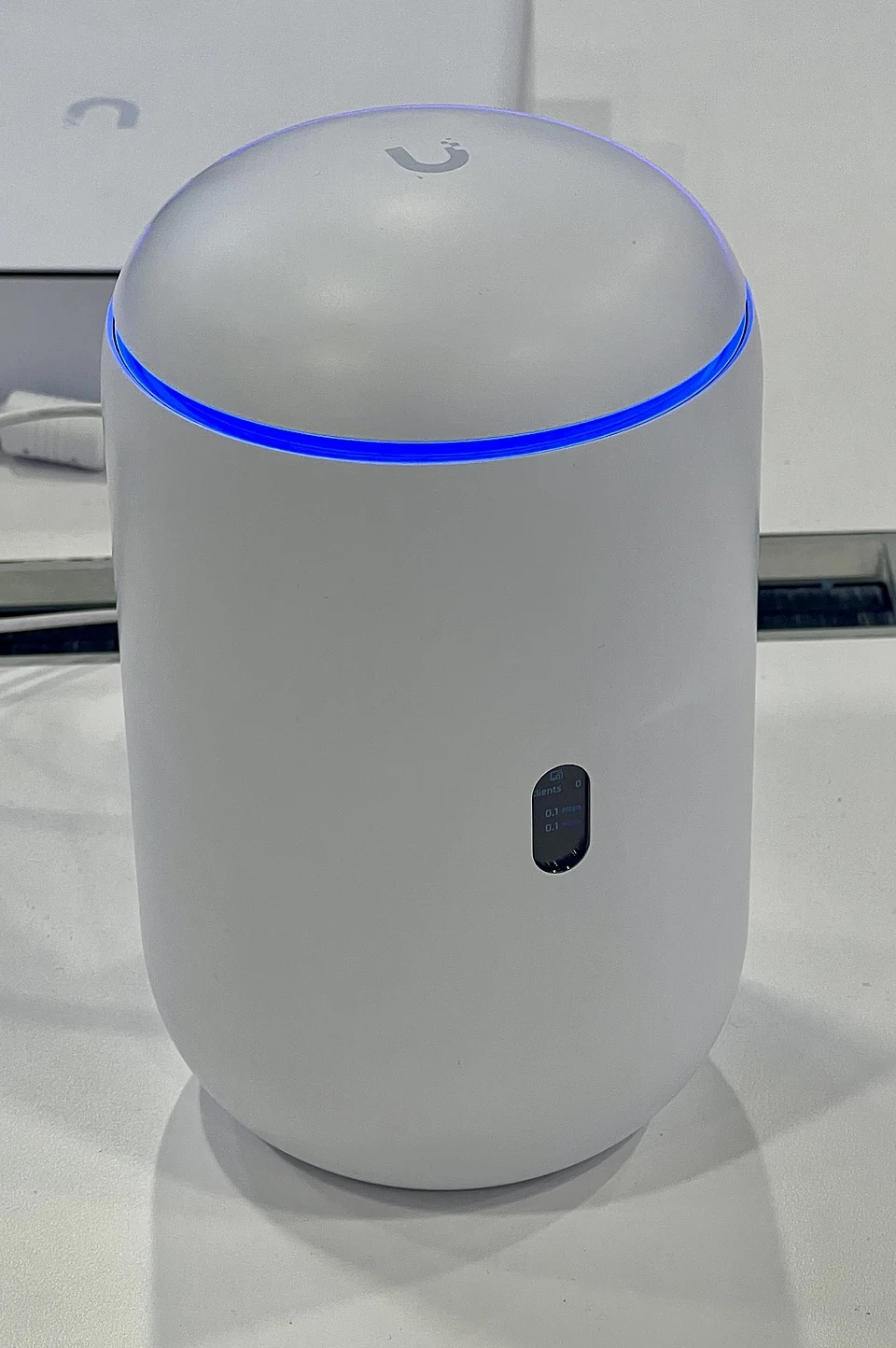
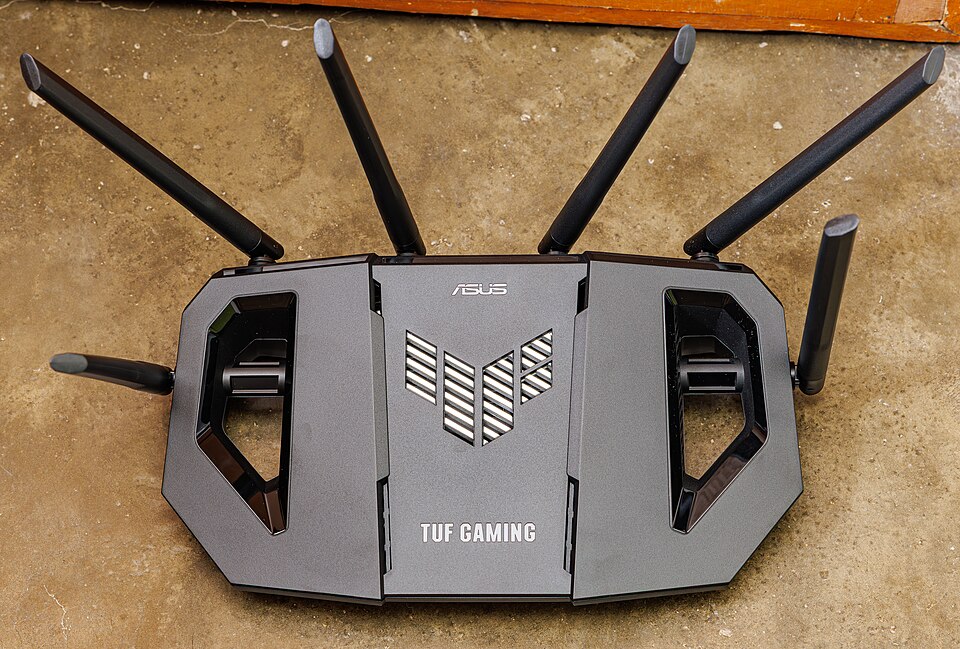
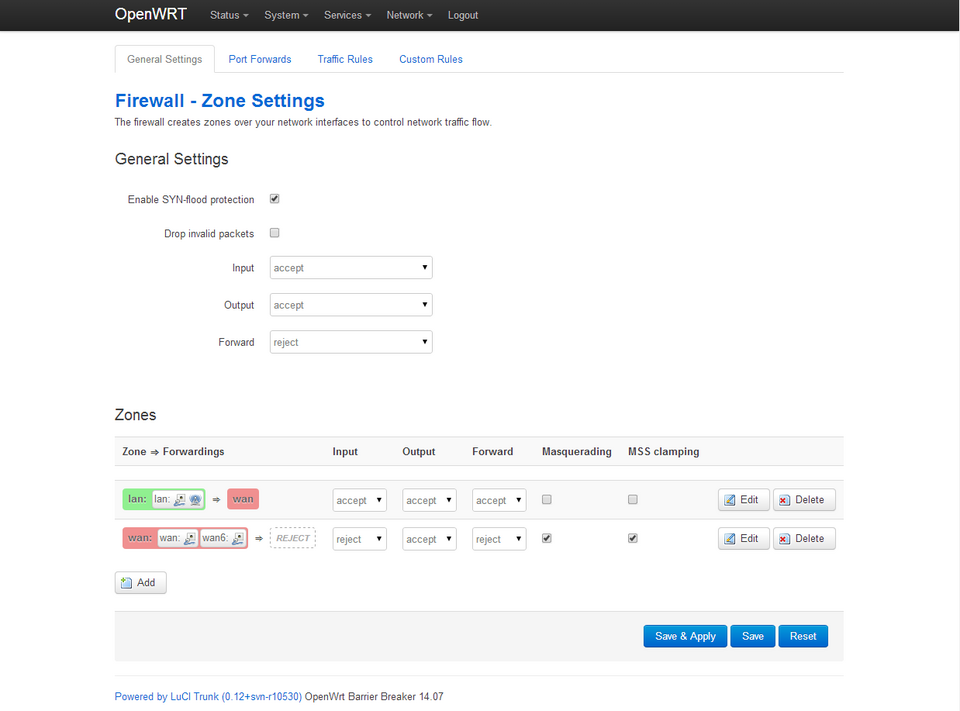
Router support checker
A single universal router-support database is not reliable enough for consumer advice. Hardware revisions, ISP rebadges and vendor portals make it messy. Use this check instead: identify the exact device, check the vendor lifecycle page and current firmware, then replace if support is unclear or dead. If you cannot log in yet, the sticker and ISP account are enough to make the first decision: reset, call the ISP, or replace.
Use the sticker or admin page. Include hardware version/revision, not just the marketing name.
Look for latest firmware date, security advisories, end-of-life or end-of-service language.
OpenWrt device support and OpenWrt release lifecycle are separate from original vendor support.
If you cannot prove updates exist, do not keep the router because the lights still blink nicely.
Avoid home-edge gear on formal covered-equipment or national-security restriction lists. Treat grey-market/no-name routers and cheap marketplace specials as caution choices for higher-risk homes unless firmware provenance, supplier trust, local support and update history are clear.
Start here for known device and firmware lifecycles. It is broad public coverage, not a guarantee for every router model, hardware revision or ISP rebadge.
ASUS vendor EOLOfficial ASUS list for networking products that have reached end-of-life status.
NETGEAR lifecycle explainerNETGEAR's official explanation of end-of-service-life and end-of-life terms. Pair it with the exact model support/download page for firmware dates.
TP-Link firmware/support lookupSearch the exact AU model and hardware version for current firmware and support material. Hardware version matters.
D-Link firmware/support lookupSearch the exact Australian model for firmware, manuals and support status. Treat missing or stale firmware as a replacement prompt.
Australian vendor EOLNetComm/NetComm Wireless legacy-product list for devices that are no longer current, useful for ISP-supplied and Australian-market routers.
Australian vendor EOLOfficial DrayTek Australia discontinued-products list for DrayTek devices common in Australian homes and small offices.
UniFi lifecycle statusOfficial Ubiquiti vintage/legacy list for checking whether a UniFi gateway, router or Network device is still supported.
Community device databaseUse last, and only for OpenWrt decisions: it shows exact device and hardware-revision support. It is not the original vendor's warranty or EOL status.
Router exposure map
A home router sits between random internet scanning and the devices people actually use. The goal is not a perfect lab network. It is fewer doors from the street, and less reach when a cheap device misbehaves.
1 outside-facing check still need attention: firmware, WPS or admin exposure.
TVs and gadgets can still wander across the same lane as laptops and work devices.
A compromised gadget still has a path toward work kit. That is the blast radius to shrink first.
Remote admin and WPS are the exceptions to hunt before blaming the whole router.
There are still obvious things for scanners to try: old firmware, WPS or admin exposure.
IoT, laptops and work devices share one room. A compromised gadget gets more places to poke.
Teaching model, not a scan: these toggles do not inspect your home. Treat amber or red results as prompts for a real check on the device, account, router or family process they describe.
Explain the jargon
Tap a term for the plain-English version and the practical move. No fake mystique, just the bit that changes what you do at home.
The push-button or PIN pairing feature for Wi‑Fi. It was built for convenience, not for a world where routers sit online for years.
Do this: Turn it off after setup. Use the normal Wi‑Fi password for new devices.
A feature that lets devices ask the router to open ports automatically. Handy for games, risky when cameras, NAS boxes or malware ask for the same favour.
Do this: Review current mappings first. Remove unknown rules. Disable it if nobody needs it. If kept, document why and keep cameras, NAS, admin pages and unknown devices out of the auto-open list.
Router management reachable from the internet. Attackers scan for these panels constantly because they are valuable chokepoints.
Do this: Do not expose the admin page directly to the internet. If remote management is genuinely needed, use the vendor supported secure-management path or a private VPN you control, with MFA and current firmware.
Self-check questions
Use these quick checks to find the next practical fix. The useful answer is not perfect security; it is whether the safer path is obvious when someone is tired, embarrassed or in a hurry.
Who in the house can log in, check the firmware version and explain what happens if the router dies tonight?
Good sign: One person owns updates, the admin login is stored safely, and the model/support status is known.
Watch for: If nobody can log in, nobody owns the internet edge. That is how unsupported routers become permanent furniture.
Which settings let the outside world touch the home network: remote admin, port forwards, UPnP rules, old VPN servers or camera/NAS access?
Good sign: Each exposed path has a named reason, current firmware and a removal date or review habit.
Watch for: Mystery forwards and automatic UPnP openings are invitations nobody remembers sending; review the mapping before changing it so required gaming or service paths are deliberate.
Where do visitors, smart gadgets, picture frames, cameras and experimental devices connect?
Good sign: Guest or IoT Wi-Fi keeps cheap and temporary devices away from laptops, NAS boxes and work gear, and has been checked so it cannot reach admin pages unless deliberately allowed.
Watch for: A flat network lets a bargain gadget become an inside problem instead of a contained annoyance.
Scenario
Nobody knows the admin password and UPnP is on.
Better response
Worse habit
Treating blinking LEDs as a support lifecycle.
Banking, games or streaming services start challenging the home connection and nobody knows why.
Better response
Worse habit
Only blaming the website while the router keeps acting as someone else's exit point.
Why this advice holds
Check the router model, switch off risky convenience settings, understand why botnets want home routers, and replace unsupported gear instead of spending another Saturday fiddling.
Mirai made the point loudly: weak defaults and neglected internet-facing devices can become attack infrastructure. More recent advisories show home and small-office routers being abused by serious actors too, including state-linked operations. This does not mean your household is personally targeted. It means unsupported routers are useful background infrastructure, so support status and exposed settings matter.
A hostile router can proxy other people's traffic, take part in DDoS activity, hide scanning, interfere with DNS, expose internal devices, or make your home IP look suspicious to banks, games, streaming services and work portals. You may not see malware on a laptop because the problem is upstream, quietly turning the internet edge into someone else's tool.
Low-maintenance homes should prefer supported auto-updating ISP/eero/Nest-style gear. Moderate homes can run ASUS, Synology, Netgear or simple UniFi if somebody reads notices. Technical homes can run UniFi, OpenWrt, pfSense or OPNsense, but the owner must document rules and replacement triggers.
Do not buy home-edge networking gear that appears on formal covered-equipment or national-security restriction lists. For very cheap, grey-market or marketplace routers, check the firmware source, local support path, vendor ownership and update history before trusting the device at the internet edge. If you cannot answer those questions, choose a supported router with a boring update story instead of gambling on price.
Replace when the vendor no longer ships security fixes, the admin UI is unknown, firmware cannot be verified, or the device requires unsafe features to remain usable. Sentimentality is for photos, not unsupported internet edge devices.
Guest Wi‑Fi for visitors and IoT is useful because it is simple. Check that the guest/IoT network actually blocks access to main devices; some routers only create a separate SSID without meaningful isolation. Fine-grained firewall artistry is only useful if a real person maintains it.